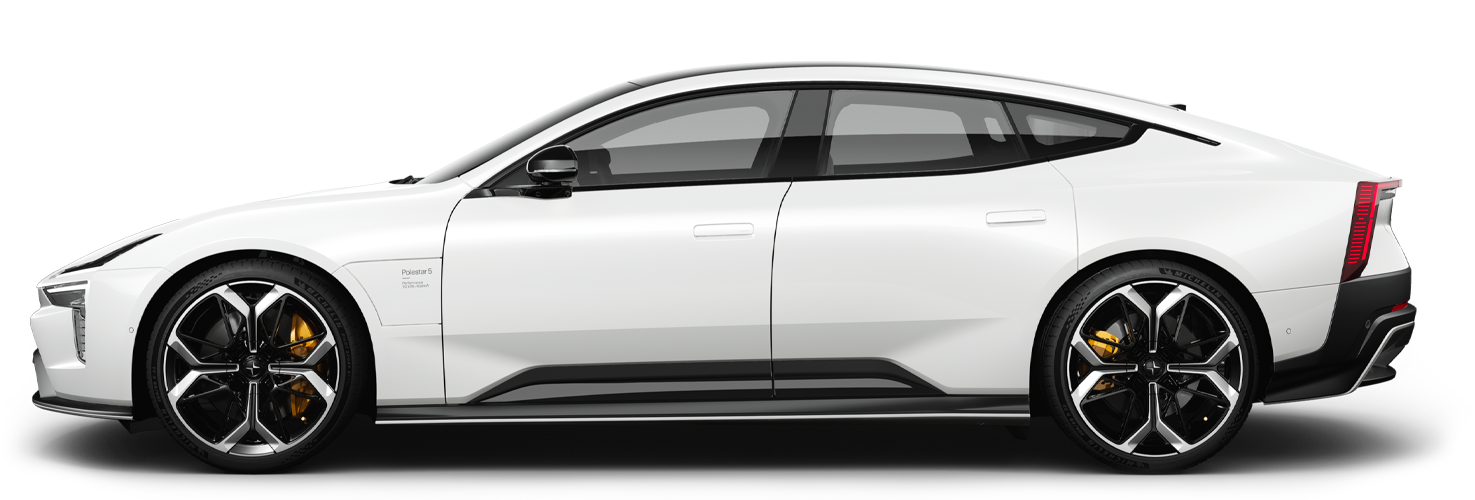
The driver display shows you information related to your driving and the car itself.
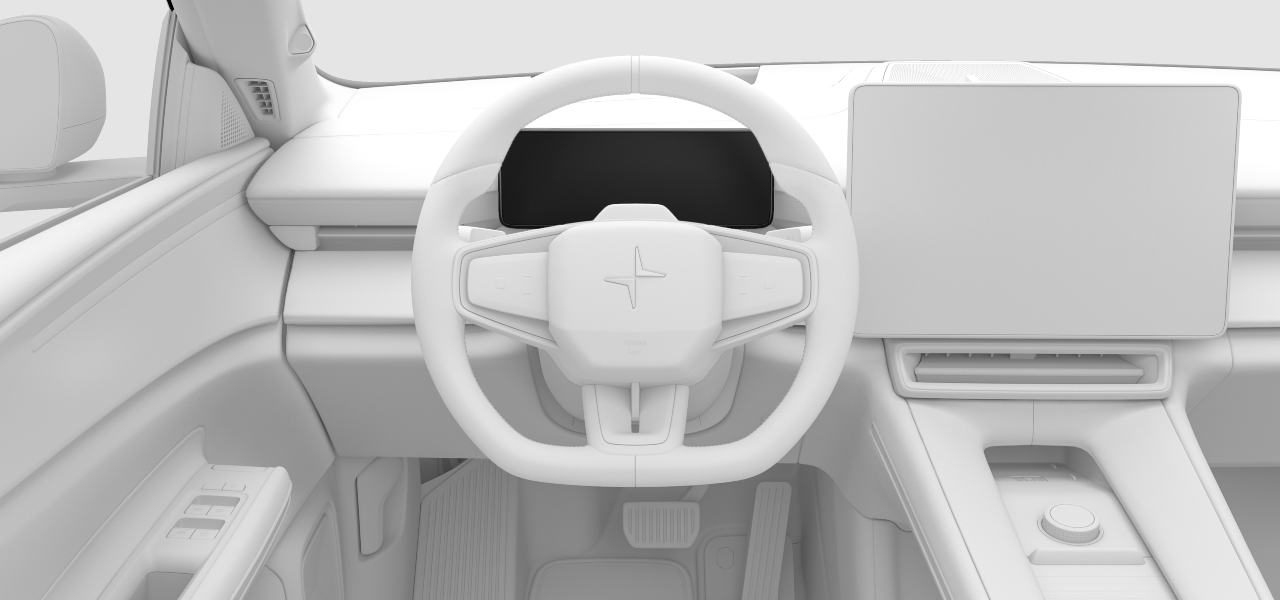
The driver display is located in front of the driver, behind the steering wheel.
Examples of information that can be shown in the driver display are:
- Warning and indicator symbols
- Speed
- Road sign information
- Navigation
- Driver support information and status
- Notification messages
- Battery meter
- Power meter
Controlling the driver display
You can use the steering wheel buttons to interact with the driver display, control what's shown on it and use certain functions. When you move your finger over the touch-sensitive buttons, the function associated with each button appears in the driver display.
The driver display has a menu where you can access a number of adjustment settings, view and reset the trip meter, and change how the range value and speed units are displayed. Press the menu button  on the steering wheel to open the driver display menu.
Display modes
There are three driver display modes that you can choose from: calm, surround and map. Press the display mode button  on the steering wheel to change between modes.
on the steering wheel to change between modes.| Calm | This is the default mode which displays essential information, such as speed, battery level and range, as well as warning and indicator symbols. |
| Map | The driver display shows your current navigation route on a map as well as essential driving and car information. |
| Surround | In this mode, you can see a depiction of the car, its positioning on the road and other vehicles. The same essential information as calm mode is also displayed. |
Important
Using surround mode
Surround mode cannot perfectly depict what is really happening on the road around you, so do not rely on it when you are driving.
Warning
If the driver display turns off, doesn't turn on or is only partially legible, you must not use the car. This is because the driver will not receive warnings and car status information shown in the driver display, such as warnings and information relating to brakes, airbags or other safety systems. If there is an issue with the driver display, contact Polestar support.
Tip
You can change driver display settings in the centre display.